How to create Register groups:
- Navigate to the Timetable
- Click on any session
- Select the ‘Register Groups’ tab under ‘Attendance’
- From here you can manage existing groups or create new ones
- Simply drag and drop attendees to add them to a group
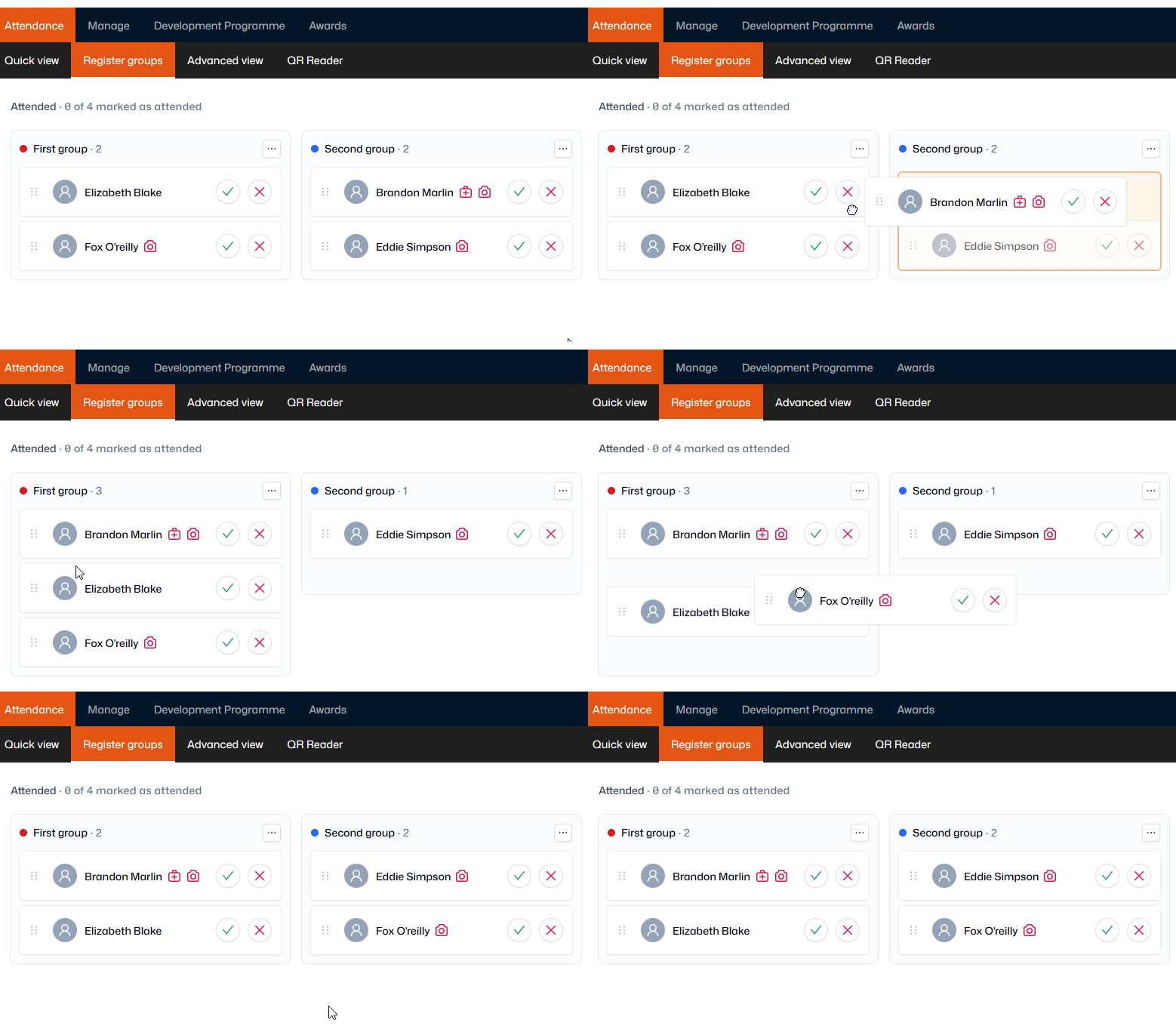
Note: Register groups and their attendees will automatically carry over from session to session, as long as it’s the same class on the same schedule.
To remove attendees from a Register group, simply drag and drop them into the ‘Unassigned’ group.
You can also add/remove attendees and manage groups by clicking the Edit Group menu (three dots) in the top-right corner of the group.
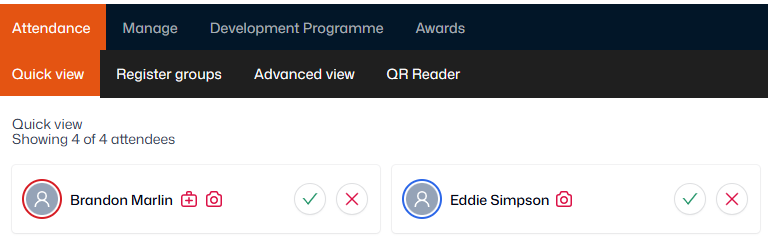
Tip: Quickly see who's in each Register group by the coloured circle around their profile in the 'Quick view' tab.