
With multiple customisable sections, you can configure your enquiry form to capture the information you need from potential new customers, such as skill level and availability.
You can also choose who should be notified when an enquiry is submitted, and all enquiries are kept in one report, helping you manage the entire enquiry process without hassle.
Note: Submitting the enquiry form does not create a Thrive4 MemberHub account for the person filling out the form.
How to enable and configure the form:
- Navigate to Your shop > Shop enquiry form
- Customise the following sections:
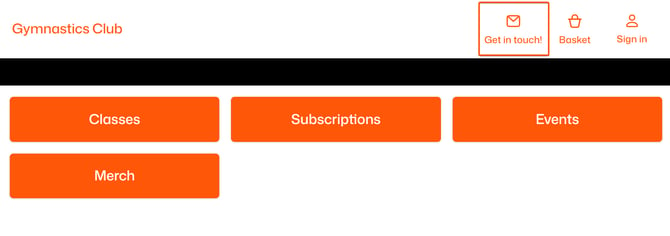
Button label
Personalise the link in your shop your customers use to access the form.
Form heading
Set the title customers will see at the top of the form, e.g. “Contact us” or “Get in touch”.
Description
Customise the text shown under the heading
Note: Fixed fields are always included on the enquiry form and cannot be customised.
Custom fields
Configure up to 10 additional text fields for your enquire form, with optional helper text. Leave the title blank to hide the field.
Message placeholder
Tell your customers what information they should give you to help them with their enquiry. This text will show inside the message box.
Notification email address
Enter the email address where notifications should be sent when the form is submitted. The address must belong to an admin account.
- Enable your form on the shop using the toggle at the top of the page
- Click ‘Save’
Tip: You can check your form is configured as expected with the ‘View form’ button in the top-right corner.
Enquiries report
This report is found in Reporting > Operational reports > Enquiries, and includes the following information regarding the enquirer:
- First and last name
- Email address
- Mobile phone number
- Response to any custom fields
- Message
From here, you can select forms and perform the following actions:
- ‘Message’ – send an email to the user
- ‘Mark as replied’ – update the ‘Status’ column to keep track of who has been responded to
- You can undo this with ‘Mark as submitted’
- ‘Delete message’ – remove any outdated, dealt with, or unneeded messages