
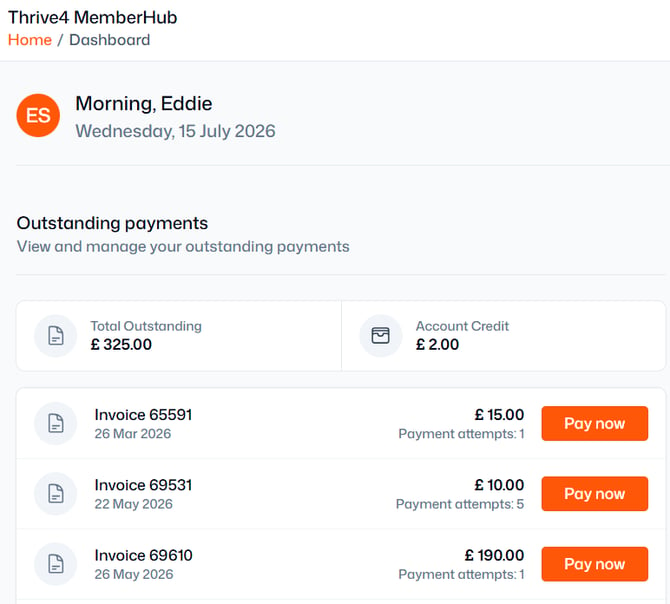
Any outstanding invoices will be listed on the dashboard of the Thrive4 MemberHub app or online portal, as well as under Payments > Outstanding Payments – just click/tap ‘Pay now’.
On a mobile device, you’ll need to click into the invoice first to see the ‘Pay now’ button.
Automatic payments
If you have previously set up a direct debit or authorised a card to be used for future payments, invoices will be processed automatically, and you won't need to take any action
If you’re unsure whether an invoice payment is being taken automatically, head to Payments > Purchase History. Each invoice will be either ‘Outstanding’, ‘Pending’, or ‘Reconciled’.
Outstanding
If an invoice is outstanding, return to the dashboard to submit a payment.
Pending
If an invoice is pending, there is no further action to take as the payment is already in progress. This is typical for payments made by direct debit, which can take several days to complete.
A pending payment does not guarantee the successful completion of your payment. If there are any banking related issues causing the payment to fail, the processing timeline will restart.
Direct debit payments will usually attempt to collect 3 times automatically. If all three payments are unsuccessful, the invoice will change to ‘Outstanding’, and you will need to initiate payment using the ‘Pay now’ button.
Direct debit payments may take between 3-6 business days to be debited from your bank account.
Reconciled
If an invoice is showing as ‘Reconciled’, the payment has completed successfully.
Member guide: How to manage your saved payment methods
Tip: For help adding a new payment method, see our guide here.
How to delete a saved payment method
- Login to the Thrive4 MemberHub app or online portal
- In the left menu, head to Account > Settings > Payment Settings
- Select the organisation the payment method will be used for using the dropdown
- Click/tap 'Delete'/'Remove' on the relevant payment method
Choosing a new default payment method
If you have more than more payment method available for an organisation and would prefer another is used by default, simply click/tap ‘Make default’.