
Steps:
- Navigate to Product management > Products
- Select the relevant class or event product from the left sidebar
- Open ‘Age restrictions’ and turn on the right-hand toggle to enable them
- Set the minimum and maximum age as required
- Choose how age restrictions should be applied:
- Age on purchase date: - select this if eligibility should be based on how old someone is when they book on. Useful when age limits apply at the point of joining rather than on a season or term basis
- Age as of specific date - select this if eligibility should be based on a fixed cutoff date (e.g. the start of a season or school year). The system will calculate everyone’s age on that date automatically
- Click ‘Save’
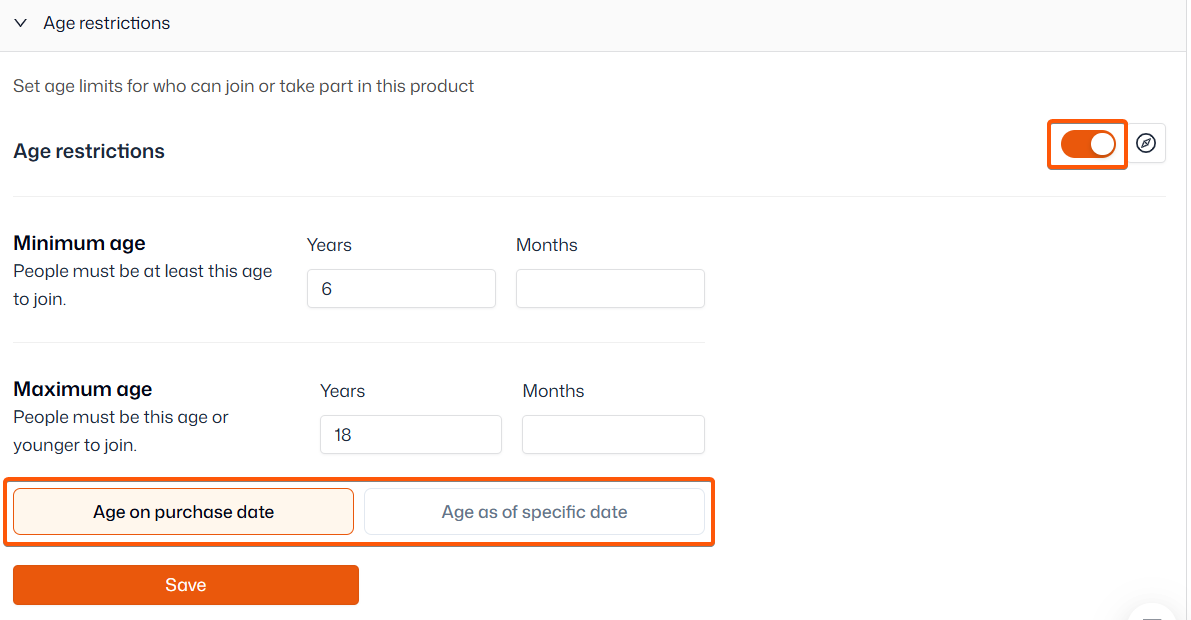
Note: If you leave the ‘Months’ field blank, the system will automatically include all months in that year. If your restriction is more specific, make sure to set the months as needed.
For example, if you’re running a class for 4½‑year‑olds, enter 6 in the Months field.