
Once your coaches are on your system, you can then assign them to specific schedules, to allow them to see and manage the Timetables for their classes and sessions only, without giving them access to all members on your system.
For products without a schedule, e.g. subscriptions, you can choose to assign your coaches directly to the product. This will allow the coach to see all contacts associated with that subscription from their Contacts page.
For more information on this, click here.
How to add a new coach to the system:
- Navigate to Contact management > Contacts
- Click on the 'Add Contact' button in the top-right
- Select Coach
- Enter their details and click ‘Create’
The coach will receive an email invitation to create a password.
Once the coach has created their password, their account and role will be active. For full details on manually adding users, view our full article here.
How to make an existing contact a coach:
- Search for the contact and click their name
- Please note only account owners can be assigned staff roles, not beneficiaries
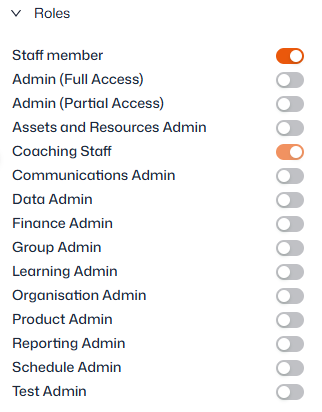
- Open up the ‘Roles’ section on the right-hand side
- Toggle ‘Staff member’ and ‘Coaching staff’
You can also make multiple existing contacts coaches at once via Groups – see our help article here.