
Tip: We recommend setting up and reviewing custom calendars at the start of every term or year to ensure you have the latest exclusions dates included.
We advise against applying exclusion dates for a period that has already been invoiced. If you need to make last-minute changes we'd recommend cancelling sessions instead - full guide available here.
Exclusions can be used to indicate specific dates when scheduled activities will not take place, such as during a half-term break.
How to create a custom exclusion calendar:
- Navigate to Product management > Schedules
- Click ‘Exclusion dates’ at the top of the page
- Click ‘Add exclusion calendar’, give it a name, then ‘Save’
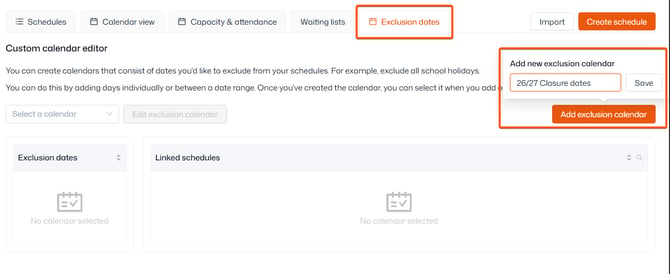
- To add your dates, click ‘Add exclusion date’ then ‘Single date’ or ‘Date range’
- Once you’ve added all your dates, click ‘Edit applied schedules’
- Tick the schedules you’d like to apply the exclusion calendar to
- Click ‘Process changes’
Important: When you do this, you’ll be asked to confirm and proceed with the changes, which will also action the following:
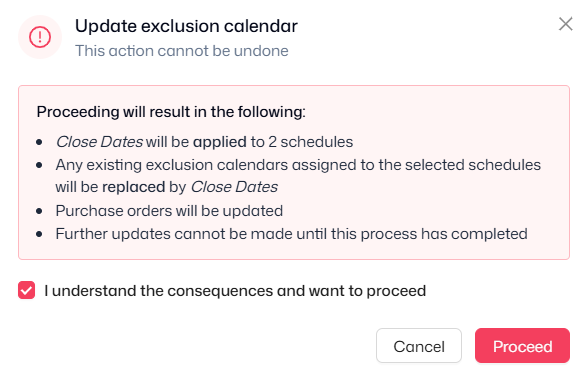
Note: This will tie the schedule to that exclusion calendar. Any changes made to the custom calendar will affect this schedule.
How to add schedule-specific exclusions:
If you have a single schedule that requires its own exclusions, you can add the exclusion dates directly to the schedule.
- Navigate to Product management > Schedules
- Click the name of the relevant schedule
- Click the ‘Excluded dates’ tab
- Add your date ranges and click ‘Save date range’ for each one
- Click ‘Save’ to finish
Note: You can add excluded dates for a specific schedule alongside any exclusion calendar it’s linked to.