As opposed to adding a contact to a product, which associates them with the product immediately and automatically invoices them, you may wish to invite them. For example, when you are running a special event and want to notify your existing contacts, or if you are inviting your members to sign up for a new class.
Inviting a person to a product will send an email invitation, with an option to accept or decline. Contacts will be sent directly to the product in your shop with the option to purchase and choose any available dates or prices.
Users can access all their product invitations from the ‘Invitations’ tab of the Thrive4 member portal.
Note: Inviting a contact to a class or event limits their purchase to the chosen schedule, but is not tied to any specific date(s).
If the contact requires a specific start date, you should instead add them to the product - full steps here.
Steps – Contact record:
If you’re inviting one contact to a product (or multiple products), the quickest way is via their contact record.
- Search for the contact and click their name
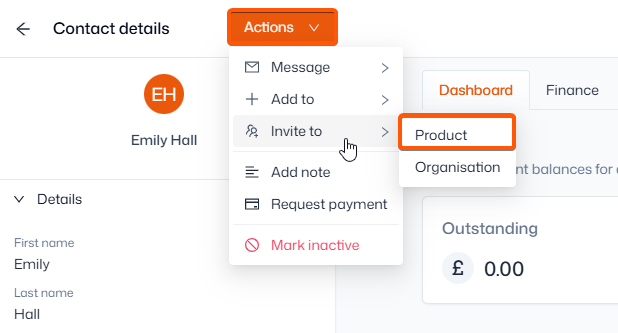
- Click ‘Actions’ in the top-left, then ‘Invite to’ and choose ‘Product’
- Fill out the required fields and submit
Steps – Contacts page:
If you’re inviting multiple contacts to the same product, the Contacts page is the quickest way. The following steps can also be followed in reports and registers.
- Navigate to Contact management > Contacts
- Tick the checkbox next to the contact(s) you wish to remove
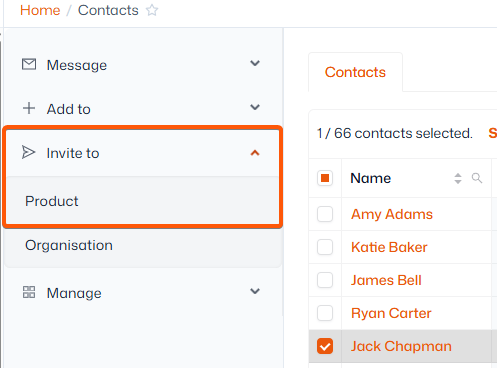
- In the left sidebar, click ‘Invite to’ and choose ‘Product’
- Fill out the required fields and submit