
Important: If changing the time of a class paid for monthly, we recommend making the change the same week it occurs.
For advice making changes to your timetable in advance, reach out to us at help@thrive4.com
Step 1: Creating the new schedule
The easiest way to do this is to clone the schedule with the amended details:
- Navigate to Product management > Schedules
- Click on the name of the schedule that’s changing day/time
- Change the name slightly (you cannot save a copy with the same name)
- Edit the day(s) and/or time(s) as needed
- Edit the start date
- Click ‘Save copy as’ in the bottom-right corner
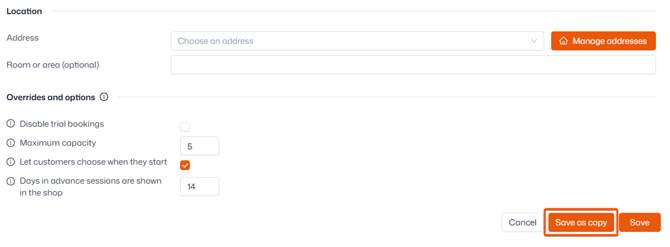
You can also create the new schedule from scratch if need be - check out our full guide here.
Step 2: Moving attendees to the new schedule
Whether your class is paid for termly or monthly, you’ll want to move attendees over to the new schedule for free to prevent charging twice for the same period:
- Navigate to the Timetable and click into the session after the final session of the old schedule
- For example, if the last session before the class changes day is Monday the 10th, click on Monday the 17th (which won’t actually be taking place)
- Click into the ‘Manage' tab
- Click ‘Move attendees to new class’
- Use the ‘Move class’ step-by-step to add them into the first session of the new schedule onwards
- At the ‘Payment settings’ step, toggle ‘Apply charges this period’ off to prevent the attendees being re-invoiced for the same term or month. Monthly billing will resume as normal on the next invoice date automatically
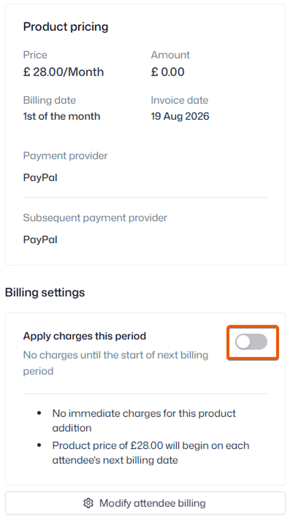
Tip: See our full guide to class moves here for a detailed step-by-step guide.
Step 3: Applying an end date to the old schedule
End-dating the old schedule ensures it no longer shows on your shop or timetable, while retaining previous attendance records:
- Navigate to Product management > Schedules
- Click on the name of the old schedule
- Change the ‘Ends on’ date to the day after the final session
- You may first need to untick ‘Schedule runs continuously’
- Click ‘Save’
That's it!