Common uses of members-only discounts include Unlimited access memberships – where all classes are free if paying for a premium monthly subscription, or giving half-price recreational classes to squad members.
Defining who is considered a ‘member’
- Navigate to Product managements > Products
- Select a class or subscription product from the left sidebar
- If contacts purchase/attend this product, they’ll automatically be eligible for the discount(s)
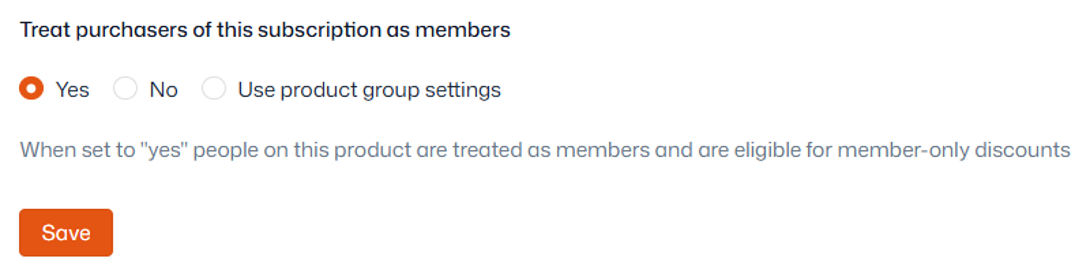
- Within 'Details', locate ' Treat purchasers of this [product] as members'
- Select 'Yes'
- Select 'Use product group settings' to inherit the setting used in the above product group/folder
- Click 'Save'
Important: By default, access to the discount will only be granted once the payment for this product has reconciled. If you use a direct debit payment provider and would like ‘members’ to be eligible while the payment is still pending, navigate to ‘Access restrictions’ in the product’s settings, select ‘Allow access while a payment is pending’ and save.
Creating the discount:
- Navigate to Product management > Discounts
- Click ‘Add discount strategy’ in the top-right corner
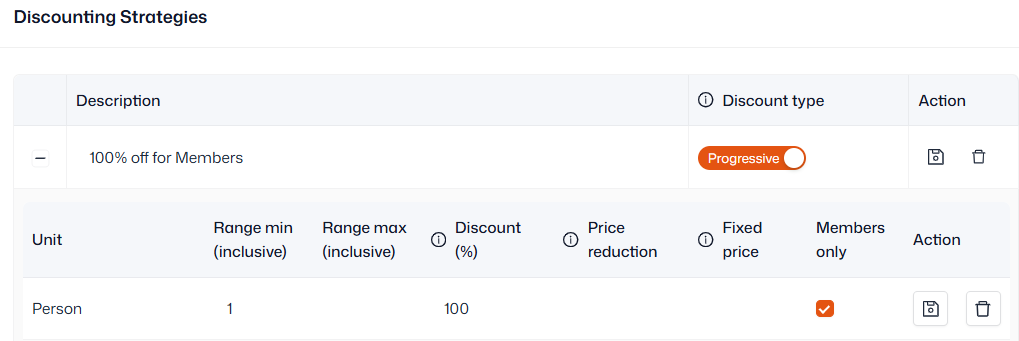
- Give the discount a description
- Note that the description will be visible to purchasers in the shop
- Ensure the discount type is ‘Progressive’
- Save using the icon on the right
- Click the plus icon to open the rest of the discount’s settings
- Click ‘Add range’ and enter the following settings:
- Unit: Person
- Range min: 1
- How much the discount should be (Percentage recommended)
- Tick ‘Members only’
- Save using the icon on the right
Note: This recommended setup means the only criteria for eligibility is the purchase of the ‘members’ product. If you would like to create a members-only discount that requires additional criteria, please get in touch with us at help@thrive4.com for further support.
Choosing which products members receive the discount on:
- Navigate to Product management > Products
- Select a product from the left sidebar
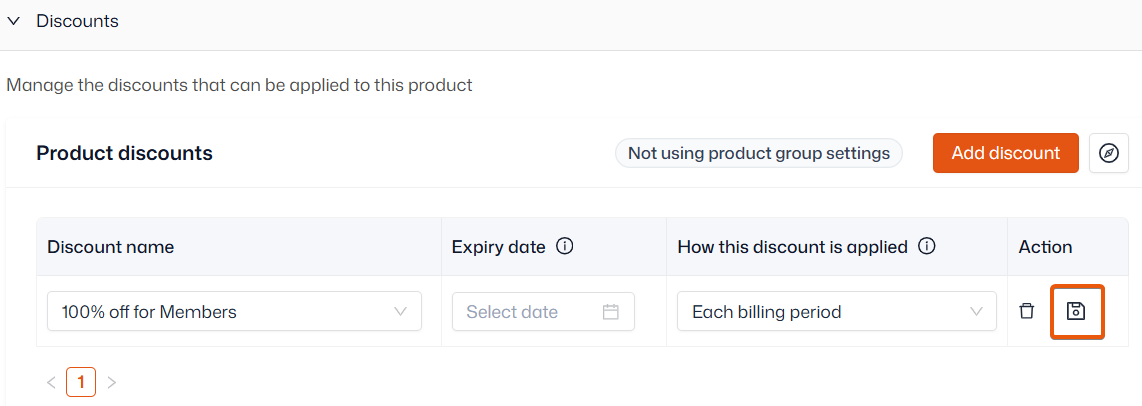
- Within ‘Discounts’, click ‘Add discount’
- Choose the discount from the dropdown
- You can also add an expiry date if you wish for the discount to only be valid on this product until a certain date
- Choose how the discount is applied:
- ‘Each billing period’ - the discount will be applied every time an invoice is issued
- ‘Each schedule’ - the discount is applied each time a schedule renews
- ‘Once, at purchase’ - the discount will only apply when the product is first purchased
- Save using the icon on the right