Important: This type of setup uses an advanced setting which allows you to offer multiple billing options for a single product. If you have additional questions or need assistance, please don't hesitate to contact our help desk for support at help@thrive4.com
How to set up the Product Group:
- Navigate to Product management > Products
- Click the 'Add product' button at the top-right of your screen
- Choose ‘Product group’ and ‘Class’
- Give the product a name, such as ‘Age 4-6’
- Add the product to an existing class product group, if you have one (leave blank if you do not)
- Click ‘Add new product group’
- Open ‘Details’ for the new product group
- Tick the box labelled 'Treat group as a product' and click ‘Save’
Now that you’ve setup the product-group-treated-as-product, you’ll need to add the sub-products, which act as pricing options with different settings.
How to set up the sub-Products:
- Navigate to Product management > Products
- Click the 'Add product' button at the top-right of your screen
- Choose ‘Product’ and ‘Class’
- Name the product ‘Monthly’
- In the ‘Add to existing product group?’ dropdown, select the product group you just set up
- Click ‘Add new product’
- Repeat the steps above for your ‘Trial’ subproduct
At this stage, your setup should look something like this:
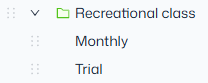
Note: Certain settings, including product billing, must be applied separately for the 'Monthly' and 'Trial' products. Meanwhile, other settings—such as capacity and schedules—should be applied at the 'product group' level.
Product settings
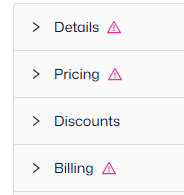
There are a number of product settings to choose from at the Product Group level (will apply to both pricing options), so be sure to click into each and make sure they are completed, you will see an alert (see below) if there are missing settings in the section:
Trial Settings
Make sure to add in your 'Trial' settings, which allow you to determine how many trials are allowed per person, and more.
To do this, select the 'Trial' option from the left-hand side, expand the 'Trial' tab in the product settings and fill out the fields as required:
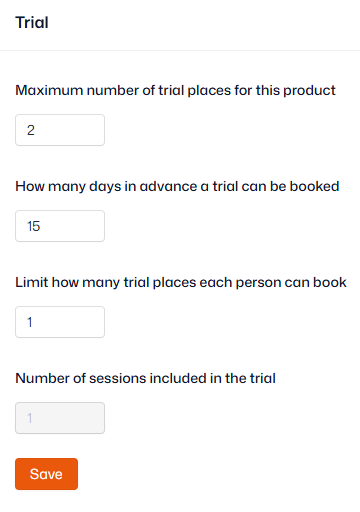
Important: 'How many days in advance a trial can be booked' overrides the trial setting 'Days before sessions appear in the shop'.
Pricing
Pricing is set against each sub-product, so you’ll need to click into the ‘Pricing’ settings under both ‘Monthly’ and ‘Trial’ and set the relevant prices
For the ‘Monthly’ sub-product, choose the monthly price per session or per calendar month. Under ‘What this price includes’ choose ‘Access to the same weekly session’.
For the ‘Trial’ sub-product, choose the price for the trial session, and ‘Access to any individual session’.
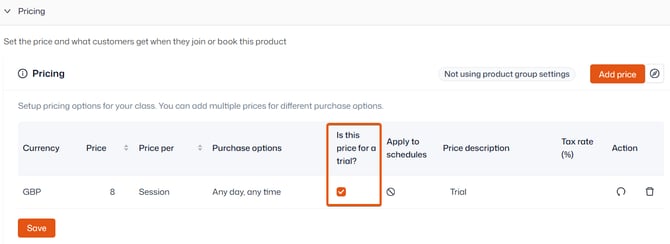
To ensure that the system recognises your ‘Trial’ sub-product as a trial for the purposes of reporting and attendance, you will need to tick the 'Is this price for a trial?' checkbox, in the Trial pricing section. This checkbox will only appear once your Trial settings have been set against the product group.
Adding a schedule:
With this type of product setup, the schedule(s) will need to be built at the 'Product Group' level - this is so that both trialists and renewing members are on the same attendance register.
- Click on the product group (the green folder)
- Select the 'Schedules' tab along the top
- Click 'Add Schedule'
- Add the schedule(s)
For more guidance on creating a schedule, click here.
Product billing
Steps to add in 'Monthly' billing:
- Click on the sub-product called 'Monthly'
- Expand the 'Billing and renewal’ tab
- Choose 'monthly billing' as the ‘Billing frequency’
- Choose your other billing settings - for guidance click here
- Ensure the 'Enable automatic renewal' checkbox is ticked if you want customers to automatically renew each month
Steps to add in ‘Trial’ billing:
- Click on the sub-product called Trial’
- Expand the 'Billing and renewal’ tab
- Choose ‘single payment (one-off)’ as the ‘Billing frequency’
- Choose your other billing settings - for guidance click here
What your customers will see
When your customers go into your shop, they will see the trial and monthly purchase options.
Taking attendance
When you go into your Timetable and click into a session that allows trial and monthly attendees, they will appear on the same register.
Trialists will have a trial marker in the 'Quick' View:
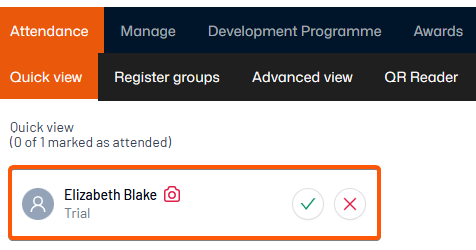
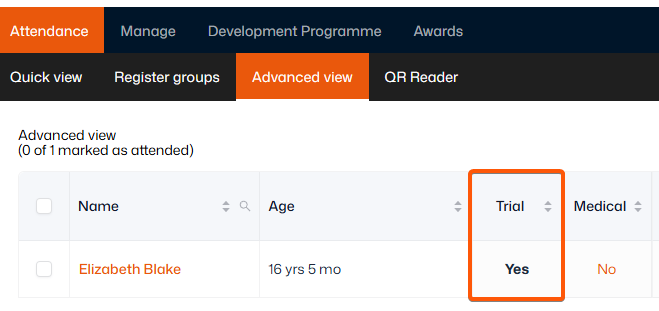
And 'Yes' in the Trial column in the 'Advanced' view and 'Manage' tab: