
Depending on how they are issued, credit notes can have two different outcomes:
- Credit raised against an outstanding invoice contribute towards a partial/full payment of that invoice
- Credit raised against a reconciled (fully paid) invoice will be considered as an account credit and can be used against a future invoice
- This will automatically come off the next invoice raised, listed as the payment method 'Account balance'
- Users can also use their available credit at checkout or when paying off an outstanding invoice - more information available here
How to raise a credit note:
- Navigate to Sales admin > Invoices
- Alternatively, head to a contact record and into the ‘Finance’ tab
- Locate the relevant invoice
- Select the invoice using the checkbox or click the three dots on the right-hand side
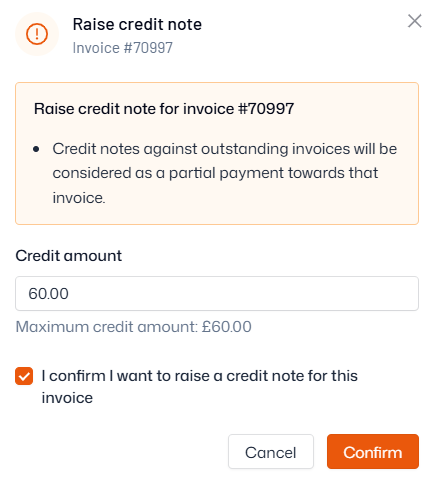
- Click ‘Raise credit note’
- Enter the amount of credit you wish to apply
- You can credit up to the value of the invoice
- Click ‘Confirm’
When removing someone from a product
You also have the option to apply credit when removing a contact from a product. For more information on this – read our full ‘Remove from product’ guide here.
When cancelling a session:
- Navigate to the Timetable page and click into the relevant session
- Click ‘Cancel session’ in the top-right
- Select the option to to refund/credit the session fee to the attendees
- Select whether to notify the attendees or not
- Click ‘Continue’ and confirm the credit (or refund) amount
- Click ‘Process’ to cancel the class and credit the attendees
Note: Crediting when removing from product will only process if the class has already been invoiced for. If you’re unsure about how to cancel a class, reach out to us at help@thrive4.com
How to remove credit from a customer's account:
To remove remaining credit available (account balance) from a user's account, simply request a one-off payment equal to the value of the credit - the credit will automatically be used to pay it.
More information on one-off payments can be found in our full guide here.