
Once a contact accepts a club invitation, registers with your organisation, or makes a payment for one of your products, they will automatically be added to your contact list. If you ever need to remove a contact record, you can easily do so via the steps below.
Note: Depending on your organisation’s sector, removed Contacts may be referred to as Ex-players, or Inactive.
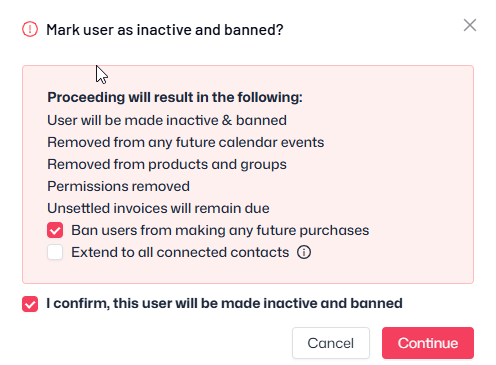
When a contact has been marked as inactive, the contact will:
- Be removed from any future calendar events
- Be removed from products and groups
- Be removed from waiting lists
- Have their permissions removed
Their invoices will remain on your system, including any outstanding. Their financial records will also remain.
Steps – Contacts page:
- Navigate to Contact management > Contacts
- Tick the checkbox next to the Contact(s) you wish to remove
- In the left sidebar, click ‘Manage’ then ‘Mark inactive’ or 'Mark as ex-player'
Steps – Contact record
- Search for the contact and click their name
- Click ‘Actions’ in the top-left, then ‘Mark inactive’ or 'Mark as ex-player'
- When you’re ready, confirm and click Continue to finish
Important: When marking a contact inactive you are not deleting the user’s account or denying them access to their Thrive4 member account. The process only removes permissions and any associations between their account and your organisation. They’ll still be able to login to the app or online portal to manage their account, access financial data, and edit personal information.
If a user’s account needs to be fully deleted, they should contact us at help@thrive4.com
How do I 'ban' users when marking them as inactive?
You may also wish to prevent inactive contact(s) from making future purchases through your shop. To do this, simply select the 'Ban users from making any future purchases' option, when following the process above to mark them inactive.
Banned users will be presented with the following message when attempting to checkout via your shop: 'You are unable to purchase this item. Please contact the organisation to resolve.'
Where can I find the contacts I have marked inactive?
As soon as you mark a contact as inactive, they are automatically moved into your 'Inactive Users' or 'Ex-players' group. You can access this via the steps below:
How to reactivate an inactive user:
- Navigate to Contact management > Contacts
- Filter by 'Group' then by 'Inactive Users' or 'Ex-players' via the left sidebar
- Select the contact(s) from the list
- In the left sidebar, click ‘Manage’ then ‘Mark active’ or 'Keep as active player'
- Select whether you would like to mark all linked accounts active as well
How to remove an inactive contact from your system entirely
Although organisations cannot fully delete a user's account, you can remove them from your system by removing them from the inactive group:
- Navigate to Contact management > Contacts
- Filter by 'Group' then by 'Inactive Users' or 'Ex-players' via the left sidebar
- Select the contact(s) from the list
- In the left sidebar, click 'Manage', then 'Remove from group(s)'