
Sending messages to the Thrive4 MemberHub app’s timeline ensure important information remains accessible as emails can often be missed in busy inboxes.
Sending emails
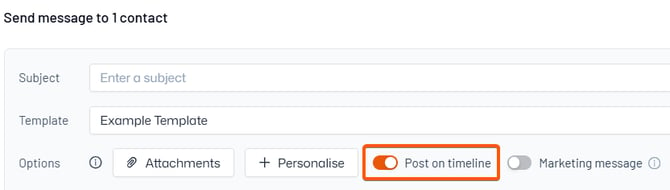
- Follow the steps to send an email to one or more of your contacts
- Toggle ‘Post on timeline’
- Click ‘Send’ and the message will be sent both via email and to the app timeline
Automatic notifications
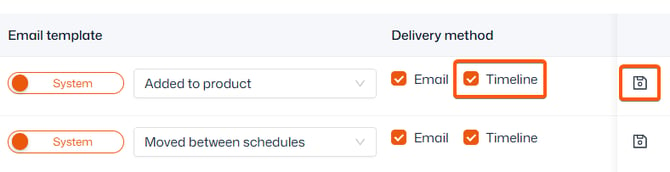
- Navigate to Communication > Notifications
- Select the category and locate the relevant notification
- Tick the ‘Timeline’ checkbox under ‘Delivery method’
- Click the Save icon on the right-hand side
Any messages sent to a contact's Timeline will also send a push notification to their mobile device if they have the Thrive4 MemberHub app and notifications enabled.
For information on how your customers can view their Timeline messages, click here.