Payment provider options
The three payment provider options can be found in Organisation setup > Payment providers.
- PayPal – accepts payments via credit/debit cards, or via members’ PayPal accounts
- London & Zurich – direct debit payments
- GoCardless – direct debit payments
Please click here for the expected processing timelines for GoCardless and here for London & Zurich. PayPal payments are instant and should complete within minutes.
Setting up PayPal
Important: Please be aware that when you create a new PayPal business account, PayPal may temporarily place a hold on your settlements until they have completed all background and risk assessment checks. We suggest advising your customers to pay via PayPal or card only after PayPal confirms that the checks are complete.
For charities and not-for-profit organisations, you must choose your business type as 'Not for Profit' when signing up. More information available here.
The integration with PayPal is designed for business accounts. If your PayPal account does not fall under any business category, unfortunately, you will not be able to set up an integration with PayPal to process payments through the system.
- Navigate to Organisation setup > Payment providers > PayPal
- Click ‘Onboard with PayPal Commerce Platform’
- You will be redirected to PayPal to sign-in to an existing PayPal business account or create a new one
- Once you have logged in and inputted your details, your account will automatically be set up with the newest PayPal integration
By default, both card and PayPal checkout options will be available for your customers. You may wish to click ‘Configure PayPal Checkout’ and disable this option to avoid incurring higher fees.
Setting up GoCardless or London & Zurich
Important: When connecting GoCardless, please note that you only need a Standard GoCardless package. It is important therefore to verify your current package before connecting to avoid any unnecessary charges.
If you need assistance with accessing your account details or downgrading your package, please refer to GoCardless' step-by-step guide here.
Note: If you already have an existing account with your chosen payment provider, all you will need to do is sign into your existing account and it will automatically link to Thrive4.
- Navigate to Organisation setup > Payment providers > GoCardless/London & Zurich
- Click through start linking your account - you will then be taken to the payment providers page to follow the next steps
- It's likely that you will receive an account verification email when registering a new account with the payment provider. Please check your email and follow the necessary steps to verify your account with your chosen payment provider.
- Once this has been done, your new account will be linked to the system
Connecting payment providers to your products
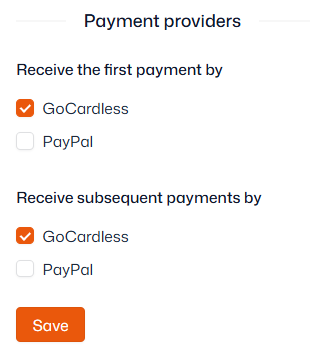
Once you have linked your payment provider(s), you'll have the option on your products to choose which payment provider you'd like to use.
- Navigate to Product management > Products
- Select a product from the left sidebar
- Open ‘Billing and renewal’ settings and choose your payment provider for the first and subsequent payments