
Note: The contacts page will only show users that have purchased an item through your shop, or have been manually added to your organisation. Users added manually that already have an account will need to accept an invitation before appearing in your Contacts.
Account owners and beneficiaries: How to identify your contacts
A beneficiary refers to any contact associated with an 'account owner.' This is most common in parent-child relationships, where the parent is the account owner and the child is the beneficiary. However, if an individual over the age of 16 manages their own account, they will appear as both the 'beneficiary' and 'account owner' of their account.
An account owner can link multiple contacts, referred to as beneficiaries, within one account. For example, a parent can have all their children linked together under their account.
Only account owners can log into the Thrive4 member portal. Account owners can update their personal information and share this information with your organisation.
Each account owner and beneficiary will have their own individual contact records that can be accessed through the system. You can identify who is the account owner and who is the beneficiary, by checking the name shown in the 'Account owner' column.
Contact records
To view a contact record, click directly on a contact’s name anywhere in the system. For more information on navigating your contacts records, click here.
Contacts page sidebar
You can use the filter in the sidebar to filter contacts by groups or products.
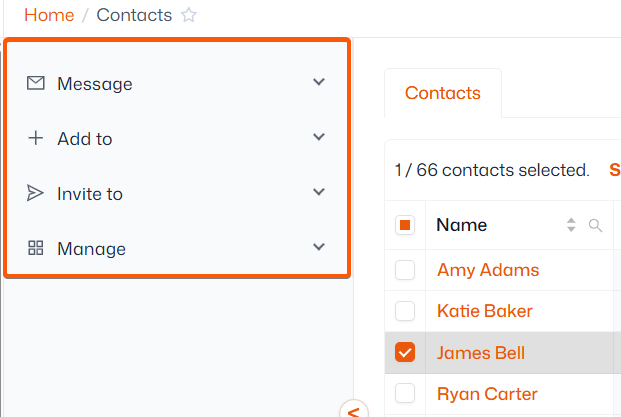
The sidebar is dynamic and will allow you to perform actions once contacts have been selected - use the checkbox beside each name to make a selection.
Once a contact has been selected, you will see ‘Message’, ‘Add to’, ‘Invite to’ and ‘Manage’ drop-down menus appear in the sidebar.
Tip: You can customise the data shown in the Contacts page with the ‘Manage columns’ feature – more information can be found here.