Viewing form data as an additional column:
- Navigate to Contact management > Contacts
- Click ‘Manage columns’ in the bottom-right corner
- Add the desired form fields (you can scroll or search for the title)
- Click ‘Save’, and this data will now show as a column
- If needed, you can also export the data from the button in the bottom-right
Note: You can also add form data as an additional column in the Timetable.
Editing form data:
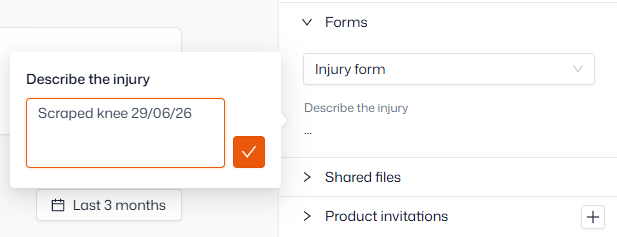
You can also view form data in contact records. In some cases, you may need to make an amendment to a form answer on a customer’s behalf, which can be done from the contact record.
- Search for a contact and click their name
- Open the ‘Forms’ dropdown in the right sidebar
- Open any form to see what answers have been provided to the fields within
- Click any field response to edit it if necessary.
Any internal fields cannot be seen by your contacts and can only be edited by admins/coaches of your organisation.