
As part of your product settings, you can set a product's status to ‘Deleted’ to hide it from general use and stop people purchasing it or signing up.
Steps:
- Navigate to Product management > Products
- Select a product from the left sidebar
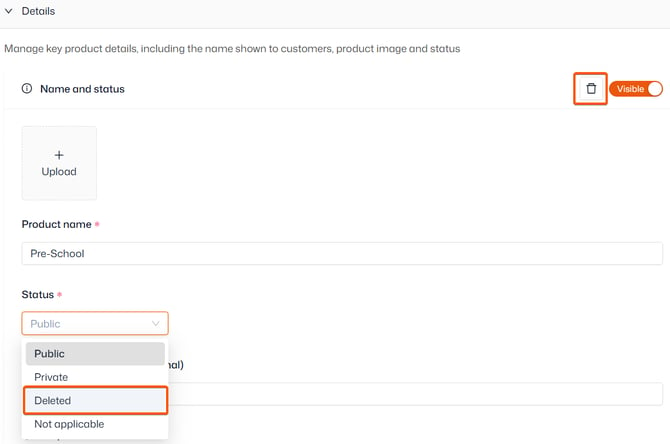
- Within ‘Details’, change the status to ‘Deleted’
- Alternatively, click the bin icon in the top-left corner then ‘Confirm'
- Click 'Save'
The product will now be hidden from your standard products list, will no longer be purchasable through your shop, and no admins will be able to add contacts to it.
You can toggle ‘Show deleted products’ option to see or hide deleted products. Deleted products will have a bin icon next to them to mark their status.
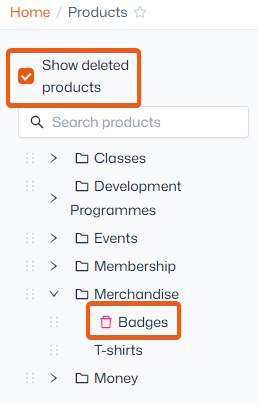
If you wish to restore this item, you can show deleted products, select the deleted product and change the status back to public or private.
Important: A product group can only be deleted once all individual products within that group have either been deleted or transferred to another group.
Deleting a product does not remove your contact's associations to that product. They still own the product as per the settings before its deletion. You will still need to remove them from the product if you want to end associations to the product.