
Note: The SMS feature is currently only available to UK-based organisations and is one-way only; recipients won’t be able to reply to you directly from the messages you send.
Important: Mobile numbers must be added to the Mobile/Contact number field of contact records - mobile numbers added to the Home or Work field will not send.
From the Contacts page:
- Navigate to Contact management > Contacts
- Select the contact(s) you wish to send an email to by ticking the checkboxes by names
- You can use the left sidebar to filter by group or product
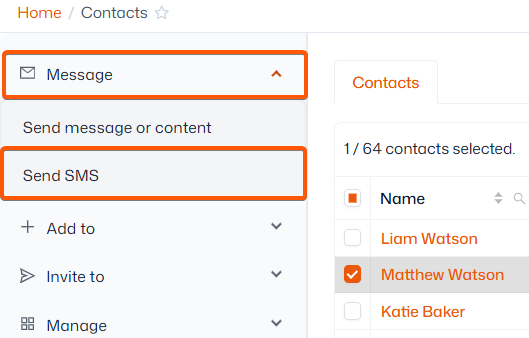
- When contacts are selected, the left sidebar will show actions that can be performed
- Click ‘Message’ then ‘Send SMS’
From the contact record
- Search for a contact and click their name
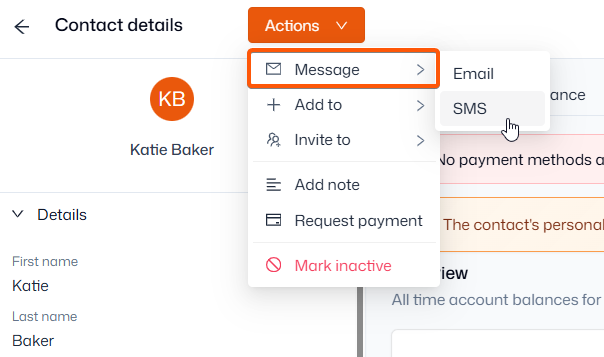
- Click ‘Actions’ from the top-left of the contact record
- Go to ‘Message’ > ‘SMS’
From the timetable:
- Navigate to the Timetable and click into any session
- Select the ‘Advanced view’ or ‘Manage’
- Select the contact(s) you wish to email
- Click ‘Actions’ then ‘Send SMS’
Composing your message
Simply type your message in the text box – each message is limited to 160 characters, included spaces. If your message exceeds this limit, it will automatically be divided into multiple messages.
Important: 1 credit = 1 SMS message
You can also personalise your message for each recipient using placeholders.
Toggle ‘Marketing message’ when sending special offers/promotions to mark the email as such. This ensures you’ll only message contacts who have opted into these communications. Your members can manage their communication preferences at any time from Account > Settings > Notification Settings within the Thrive4 member portal/app.
Once your message is composed, click ‘Next’ to view a summary of credits being used, then ‘Send’ to finish.