
A Group is a way to manually organise contacts in the backend of the system. It helps you batch people together so you can easily identify them, manage what they can access (like products or discounts), or just keep things tidy behind the scenes.
Tip: Like products, you can filter by groups on the left sidebar of the Contacts page.
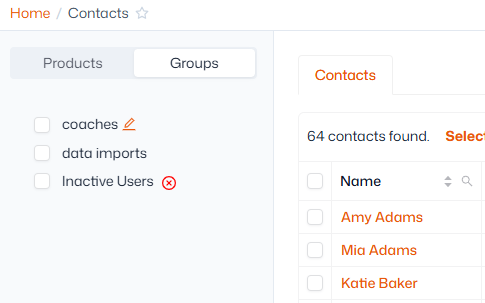
How to create a group and assign members:
- Navigate to Contact management > Groups
- Click ‘Add group’ in the top-right corner
- Give the group a name
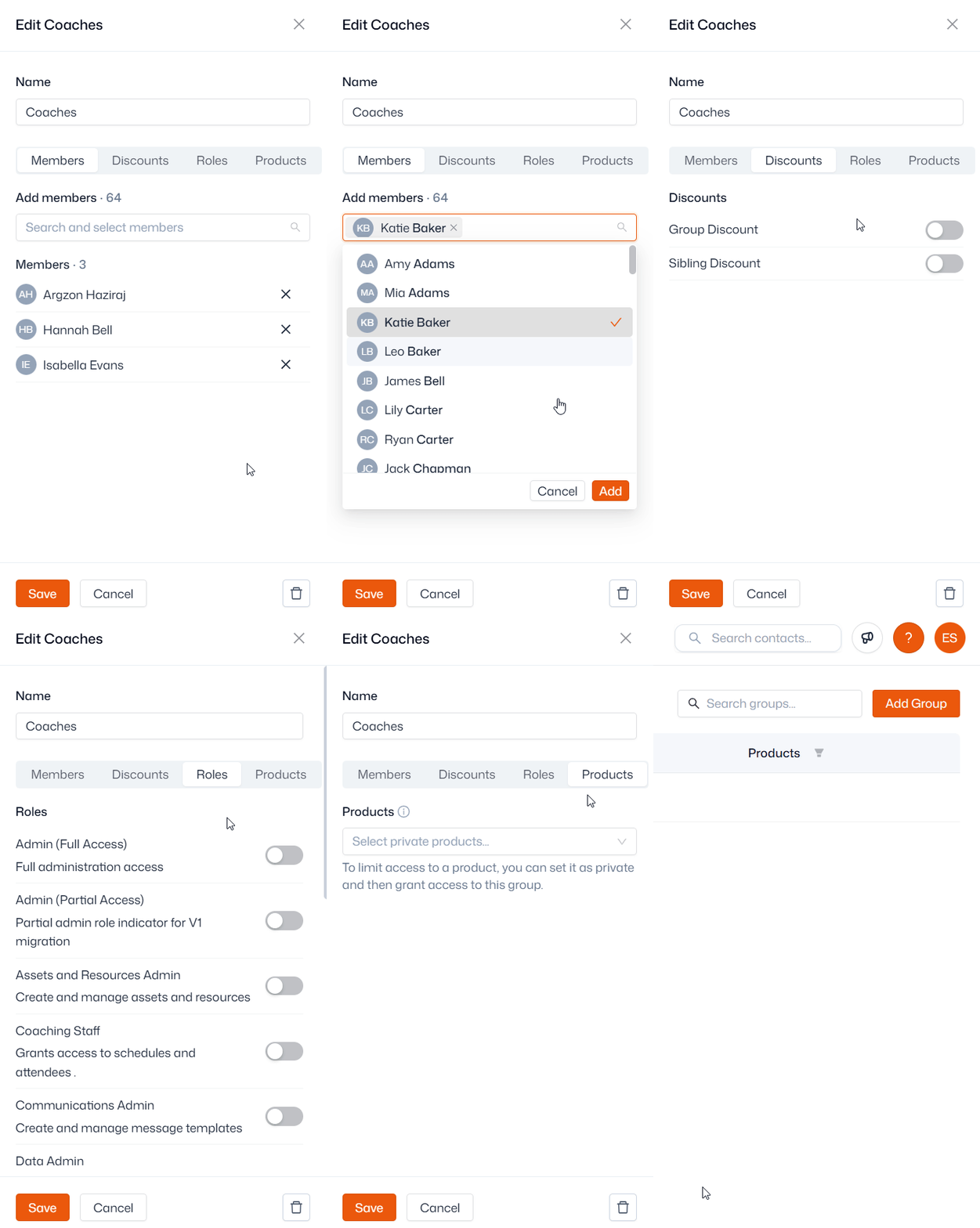
- To add contacts to the group, use the search bar and the ‘Add’ button
- Click ‘Save’ to finish
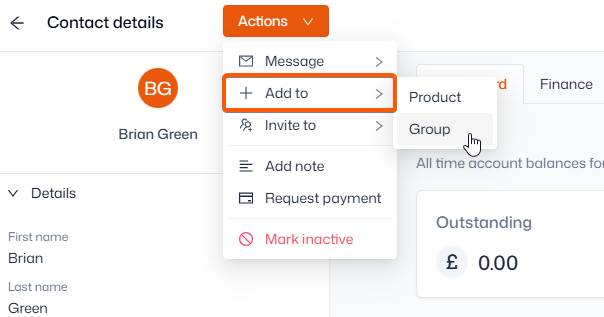
You can add additional contacts at any time from within the group, or via the ‘Add to’ function.
To remove contacts from the group, click the ‘X’ symbol by their name and save.
When a contact is in a group, you will see the group’s tag in the top-right corner of their contact record. In the ‘Groups’ dropdown in the bottom-left of the contact record, you can also add them to/remove them from groups.
You can also add users into groups in bulk from Contact management > Contacts, simply select the relevant users and use 'Add to' > 'Group'.
Group settings
Group discounts
You can assign discounts to groups, giving all contacts in the group access to that discount across your entire shop. For example, half-price discount for a group containing all your volunteers.
Note: Group discounts apply to all products regardless of product settings.
To assign a discount to a group, navigate to the ‘Discounts’ tab, then toggle the discount(s) you’d like to assign then click ‘Save’.
Roles
Within the ‘Roles’ tab, you can assign different roles to a group. This means that all members of the group will be given the corresponding role(s). This makes it quick and easy to certain contacts a specific level of access.
Private product access
Private product access can be used to allow members of a group to have exclusive access to private products that are in your shop. To grant private product access, go to the ‘Products’ tab, select the product(s), or product group(s), and click ‘Save’.
You can also assign private product access from products directly:
- Navigate to Product management > Products
- Select a product from the left sidebar
- Click ‘Permissions’ at the top
- Select the groups that should have private access
An alternative to this is to link to hidden products in the shop.