Whether you're fundraising for new equipment, improving your facilities or raising money for a particular project, Donation products make it easy for your community to contribute.
You can offer suggested donation amounts, let supporters choose how much they'd like to give, and collect Gift Aid declarations if your organisation is eligible.
For more information on enabling Gift Aid on Thrive4, see our full guide: Setting up and managing Gift Aid
Creating your Donation product:
- Navigate to Product management > Products
- Click 'Create product' at the top-right of your screen.
- Choose 'Product' and 'Donation'
- Give your product a name, such as 'New Equipment Fund'
- This name will be visible to in your shop.
- Add the product to an existing Donations product group, if you have one (leave blank if you do not)
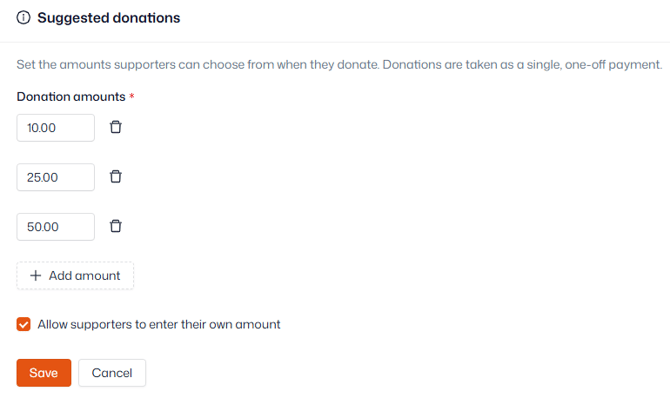
- Add pre-set donation amounts
- Choose whether to allow custom donation amounts
- Click 'Create product'
Donation product settings
Details
- Choose an image to represent the donation in your shop
- Edit the product name
- Set the product status (must be public to be visible in the shop)
- Optionally add a description on what supporters are donating towards
Pricing
In this section you can change the set donation amounts, and toggle custom donations, at any time.
Billing
Donations are always collected as a single payment and taken automatically at checkout, all you need to decide is which payment provider(s) you want to make available for donations.
Forms
Here you can assign customer forms, which will need to be completed upon purchase. For more information on forms click here.
Required files
Choose which files must be provided when purchasing – for more information click here.
Product fields
For more information about setting up product data forms and adding product fields, click here.
Product relationships
Choose any required or recommended additional products to add at checkout.
How do I link a required product to a purchase?
How do I recommend additional products in the shop?
Shop
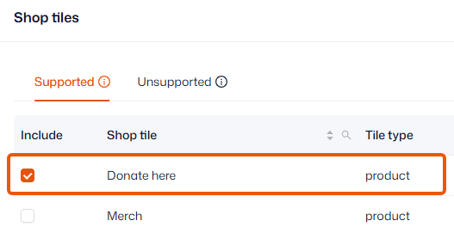
Choose where in the shop the subscription should show by assigning it to a shop tile – for more information click here.