
Note: If you need to set up a one-off event, such as a camp, click here for more information.
Tip: Before creating your products, you may wish to add Product groups. These are essentially folders used to organise your products, but they can also be used to set inheritance or offer multiple billing options.
To create a product group, click the 'Create product' button at the top-right of your screen, choose the category and the name, then click 'Create product group'.
Creating your class product:
- Navigate to Product management > Products
- Click the 'Create product' button at the top-right of your screen
- Choose ‘Product’ and ‘Class’
- Give the product a name, such as ‘Age 4-6’
- This name will be visible in the shop and shared with attendees
- Add the product to an existing class product group, if you have one (leave blank if you do not)
- Set a price per:
- Schedule – a cost for a whole schedule of dates, e.g. £300 for a term
- Session – a cost per individual date e.g. £10 a class
- Hour
- Month – a cost for a calendar month regardless of how many sessions take place
- Click 'Create new product'
Class product settings
Once your class product has been created, you can determine the rest of its settings, such as age restrictions and forms. Each setting is outlined below:
Details
- Choose an image to represent the product in your shop
- Set the product name
- Set the product status
- Add a short subtitle to show in the shop
- Optionally choose what colour the class should display as in the Timetable page and the shop timetable
- Choose whether you wish to treat purchasers as 'members' for the purpose of members-only discounts
- Set this to 'no' if you have no members-only discounts set up
We'd advise reaching out to our support team at help@thrive4.com if you have any questions about how to set up a members-only discount.
Pricing
- Set a price per:
- Schedule – a cost for a whole schedule of dates, e.g. £300 for a term
- Session – a cost per individual date e.g. £10 a class
- Hour
- Month – a cost for a calendar month regardless of how many sessions take place
- Select a purchase option - more information here
- Choose whether this price is for a trial
- Assign the price to a specific schedule if needed – more information here
- Add a price description
- Set a specific tax rate for the product
Discounts
- Make the product eligible for a discount you have set up
For more information on setting up discounts, click here.
Billing and renewal
- Single payment/Weekly/Monthly/Annually
- Choose whether admin approval is required to purchase the product
- If 'Yes', orders will come through to you for approval before the customer is charged
- If, ‘No’, the purchase be invoiced automatically
- Choose whether payment should be taken automatically
- If 'Yes', payment will start as soon as the person completes checkout, or the order is approved
- If 'No', the payment will not start until an admin collects payment or the member clicks ‘Pay now’ in the Thrive4 app/online portal
- Choose to enable pro-rata or not
- When pro-rata is enabled, anyone signing up for the class part-way through the billing period will only be charged for the remaining time
- If not enabled, the class will be full price regardless of when signed up for
Important: If pricing per session, you do not need to use pro-rata.
- Choose whether you wish to offer payment in instalments
- Select the payment provider(s) to be used for payment
- Select whether the class should auto-renew or not
- ‘Suspend billing until’ – this will make the product unpurchasable until the given date
Forms
Here you can assign customer forms, which will need to be completed upon purchase. For more information on forms click here.
Consents
Assign consents to the product – for more information click here.
Emergency contacts
Set how many emergency contacts users must provide when purchasing.
Required files
Choose which files must be provided when purchasing – for more information click here.
Product fields
For more information about setting up product data forms and adding product fields, click here.
Product relationships
Choose any additional products that must be added at checkout if not already purchased – for more information click here.
Age restrictions
For more information click here.
Capacity
Set the minimum and maximum number of people who can join this product.
Waiting list
Choose if you would like a waiting list option for this class, and how people are offered a place when one becomes available – for more information click here.
Trial
Set your trial limits:
- How many trialists can attend any one session
- How far in advance trials can be booked
- How many trialists for this class a contact can have
- How many sessions the trial consists of
Access restrictions
Choose whether to apply any restrictions to contacts behind on payments.
Shop
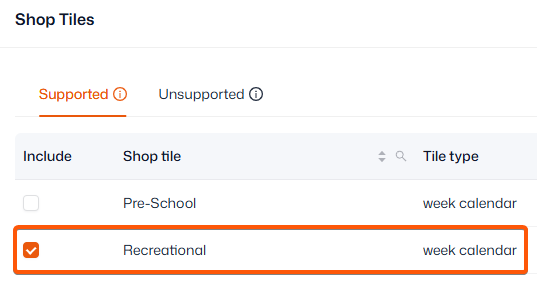
Choose where in the shop the class should show by assigning it to a shop tile – for more information click here.
Development programme
Assign the class a development programme – for more information click here.
Scheduling
Once your product settings have been defined, you will need to set up a schedule before customers can book onto your class. In most cases, you will want to use a 'recurring' schedule type for a class or session. Find more information on schedules here.